
Yes. Once your Android phone is connected to a compatible car or head unit, The Podcast App appears in your Android media launcher, where you can browse New episodes, your Queue, and downloaded shows and control playback from the steering wheel or by voice. Core listening is free, with no app-inserted ads.
A Podcast App That Works With Android
Bring your subscriptions, queue, and offline downloads to your car's Android screen. Resume where you left off and control playback with steering-wheel buttons or your voice, hands on the wheel.


Car listening guide
Contact support
Supported
Android
Android phone projection brings your subscriptions, queue, and offline downloads to the car screen, with steering-wheel and voice controls.
In the car
How Android works in The Podcast App
On your car's screen
Once your phone is connected, the app appears in the Android media launcher. Browse New episodes, your Queue, and downloads with large, driving-safe controls, and play, pause, or skip from the steering wheel or by voice with Google Assistant.
Resume across phone and car
Playback stays in sync: start an episode on your phone and it picks up at the same position on the dashboard. Offline downloads keep audio steady through tunnels, garages, and rural dead zones.
Phone projection, not Automotive OS
This is Android phone projection, where your phone drives the car screen. A native Androidmotive OS build (the system built into some newer cars) is a separate track still in development; on those cars, listen over Bluetooth for now.
Setting up Android with The Podcast App
Android is Google's in-car interface: it mirrors a simplified, driving-safe version of supported phone apps onto your vehicle's built-in display. Once your Android phone is linked to a compatible car or head unit, The Podcast App appears in the car's media launcher with large tap targets for play, pause, and skip, so you keep your hands on the wheel and your eyes on the road. You can browse New episodes, your Queue, and downloaded shows, and start playback with a steering-wheel button or a Google Assistant voice command.
Getting connected takes a minute the first time. Install The Podcast App from Google Play, subscribe to at least one show, and, ideally over Wi-Fi at home, download a few episodes. Connect your phone to the car with a data-capable USB cable or wireless Android, then approve The Podcast App on the car screen when prompted. After that first setup, the app shows up automatically in your car's media launcher whenever your phone is connected.
Playback stays in sync between your phone and the car: start an episode on the walk to your driveway and it resumes at the same spot on the dashboard. For long drives, lean on offline downloads. Podcasts streamed over a cellular connection can stutter in tunnels, parking garages, and rural stretches where signal drops, so downloading ahead of time keeps playback steady and saves mobile data.
One honest point of precision: this is Android phone projection, where your phone drives the car screen. The Podcast App does not yet ship as a native Androidmotive OS app, the operating system built directly into some newer vehicles that runs without a phone. That is a separate track we have not yet shipped. If your car uses Androidmotive OS, you can still listen through a standard Bluetooth connection while native support is in development.
If the app does not appear on the car screen, update it to the latest version, reconnect the phone (USB is usually the most reliable), confirm you have subscribed to at least one show, and check that your car is set to allow new Android apps. Restarting the vehicle's infotainment system clears most first-time connection hiccups.
Further reading
Sources and further reading
- RSS 2.0 Specificationcanonical RSS 2.0 spec (RSS Advisory Board)
- The Podcast NamespacePodcasting 2.0 RSS namespace canonical spec
- Apple Podcasts Feed RequirementsRSS feed requirements for Apple Podcasts
- Apple PodcastsApple's official podcasts app/platform homepage
- SpotifySpotify homepage (podcasts + music listening)
- Pocket CastsCross-platform podcast player (Automattic)
- Podcast IndexOpen, independent podcast index and API
- Android HelpAndroid setup and media app help center
In your language
The Podcast App, running in this language.
These are real screens from the app, not mockups. Every menu, button, and label is translated, so the app looks like this as soon as you install it.
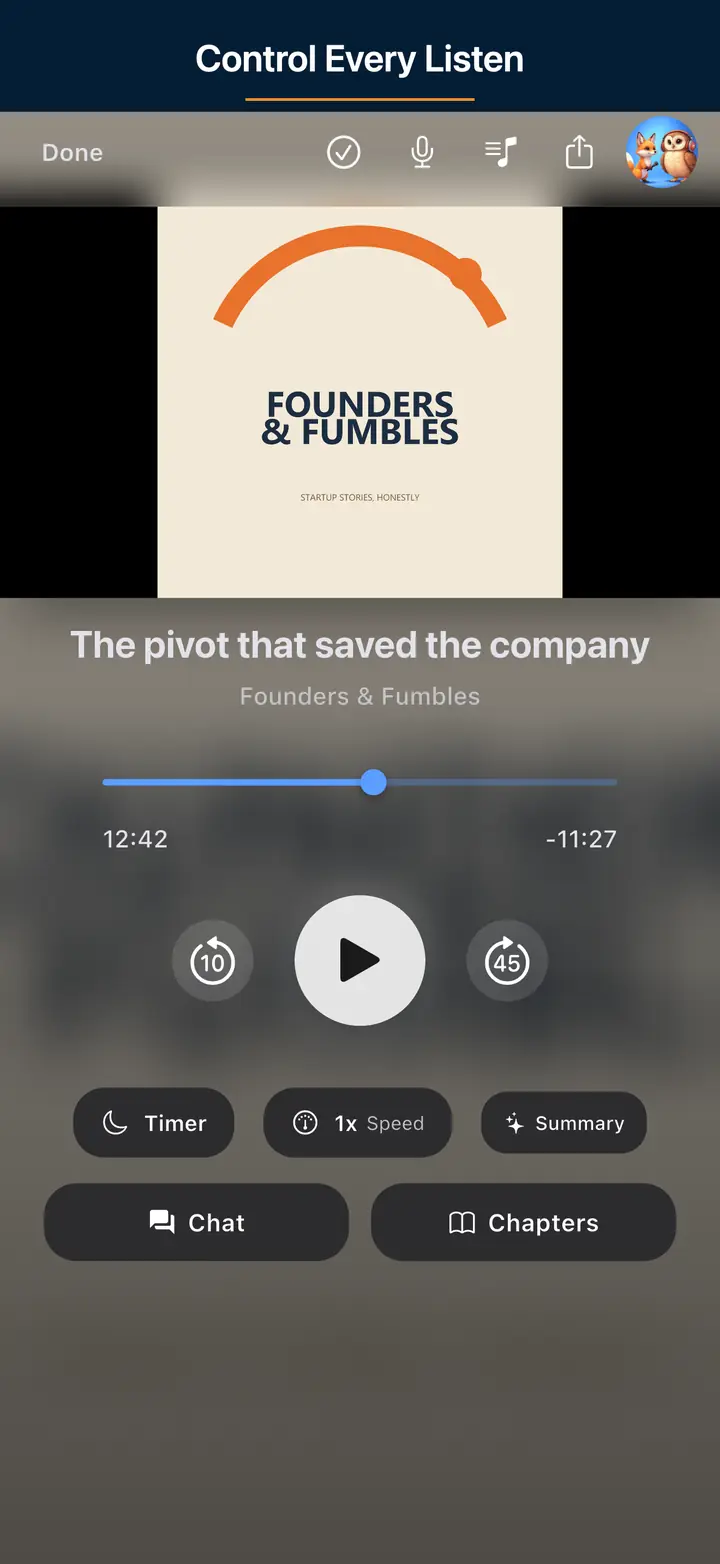
The audio player screen 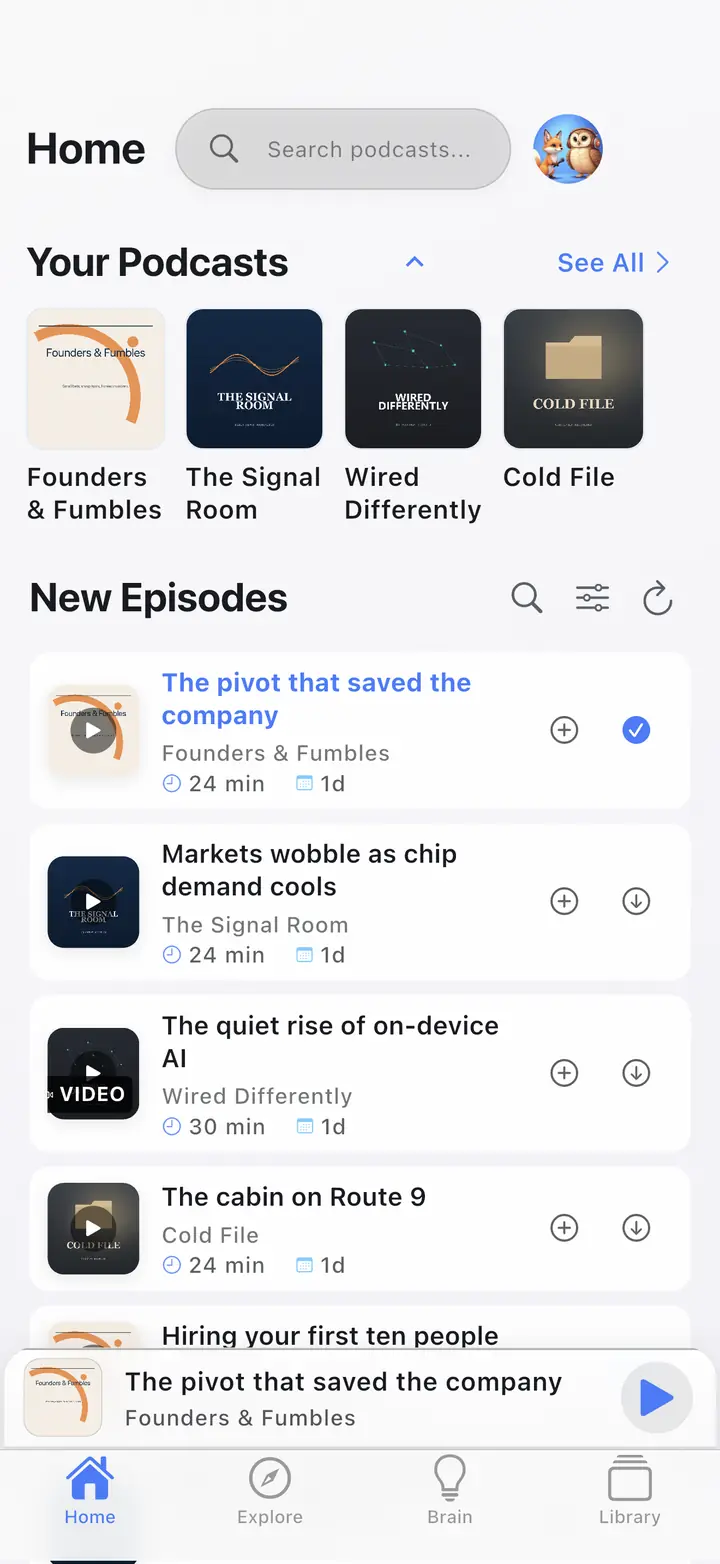
The home screen 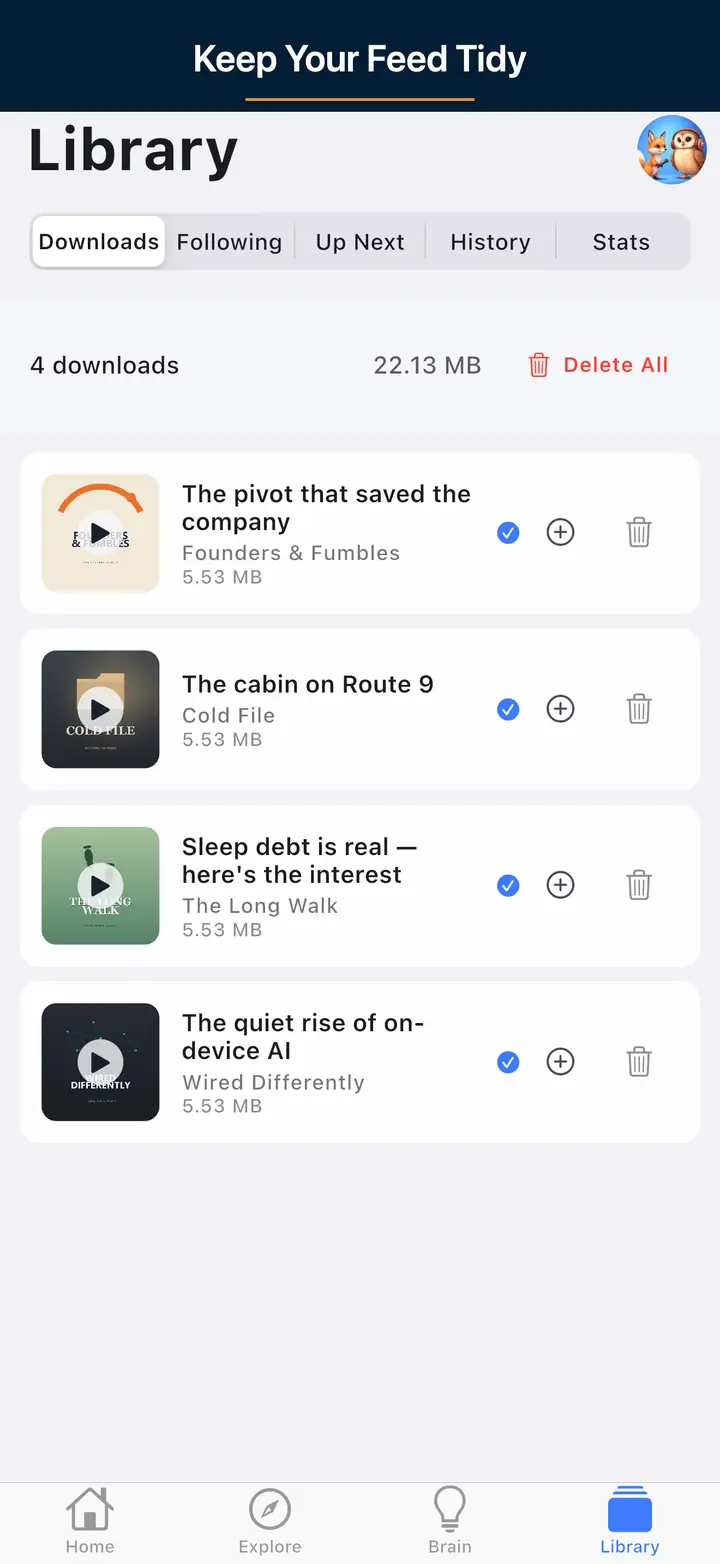
The downloaded episodes screen 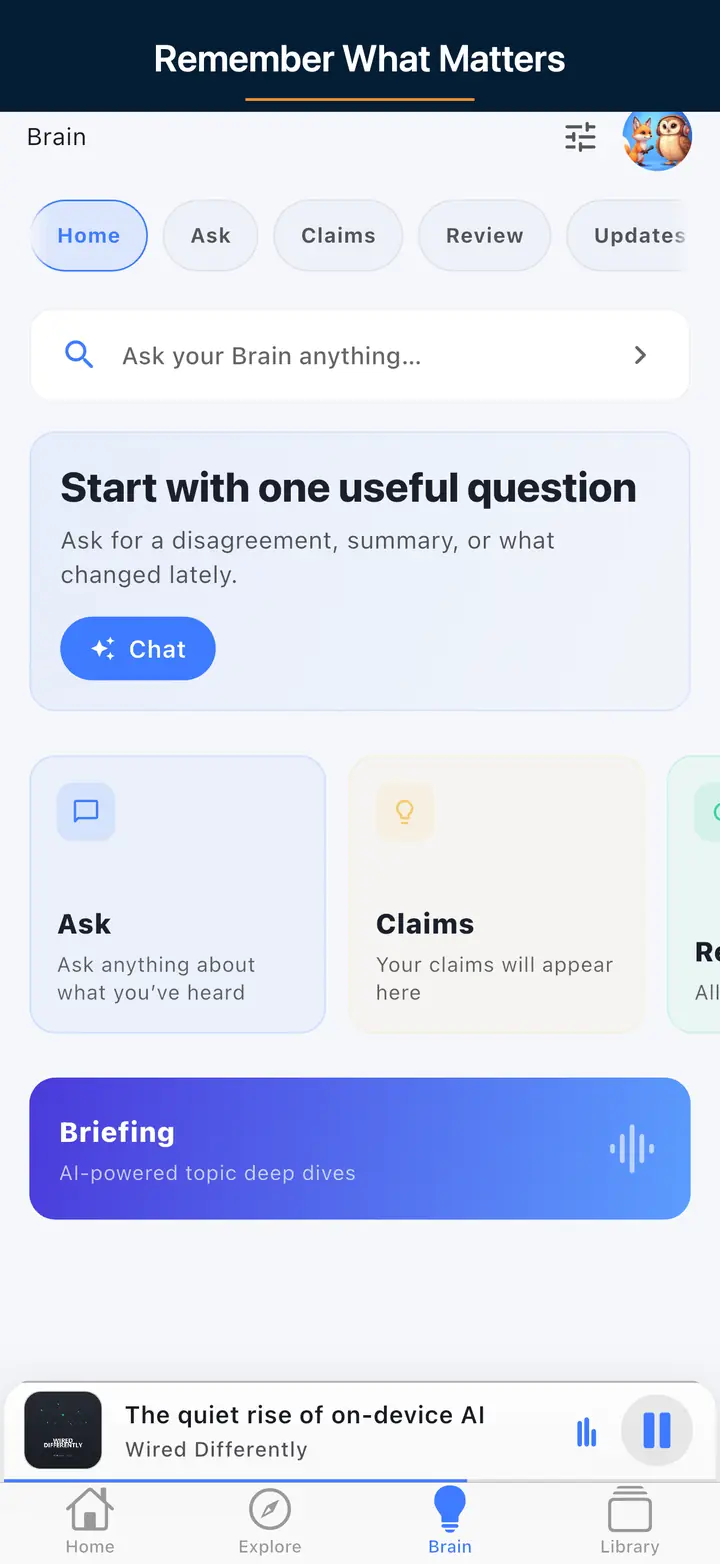
The AI assistant screen
FAQ
Your Questions, Answered
Install it from Google Play, subscribe to at least one show, connect your phone to the car by USB or wireless Android, and approve the app on the car display when prompted. It then appears in the car's media launcher automatically whenever your phone is linked.
Yes. Use Google Assistant to play, pause, skip, or start a specific show by voice, and your car's steering-wheel media buttons for hands-on-the-wheel control. Android keeps the on-screen targets large and simple so you stay focused on driving.
Not yet. The app supports Android phone projection today, where your phone drives the car screen. A native Androidmotive OS build is a separate track still in development. On Automotive OS vehicles you can still listen over Bluetooth in the meantime.
Download episodes over Wi-Fi before you leave. Offline downloads keep playback steady through tunnels, garages, and rural areas where signal drops, and they save cellular data on long drives.
Update the app, reconnect your phone (USB is most reliable), make sure at least one show is subscribed, and confirm your car is set to allow new Android apps. Restarting the car's infotainment system resolves most first-time connection issues.
Need the current setup details?
Ready to listen in the car?
Get The Podcast App on Google Play, subscribe to a few shows, and connect to Android for hands-light listening on every drive.
Open car guide
Open support